

How to Connecting Your Email in Dubsado 3.0
- Jan 6
- 1 min read
Connecting your email is a mandatory step in setting up your Dubsado CRM, as workflows and automations will send emails on your behalf. While Dubsado offers the option to use the platform as your main inbox, Bloom Your Business recommends keeping Dubsado connected for sending and tracking - without replacing your personal email environment.
To connect your email:
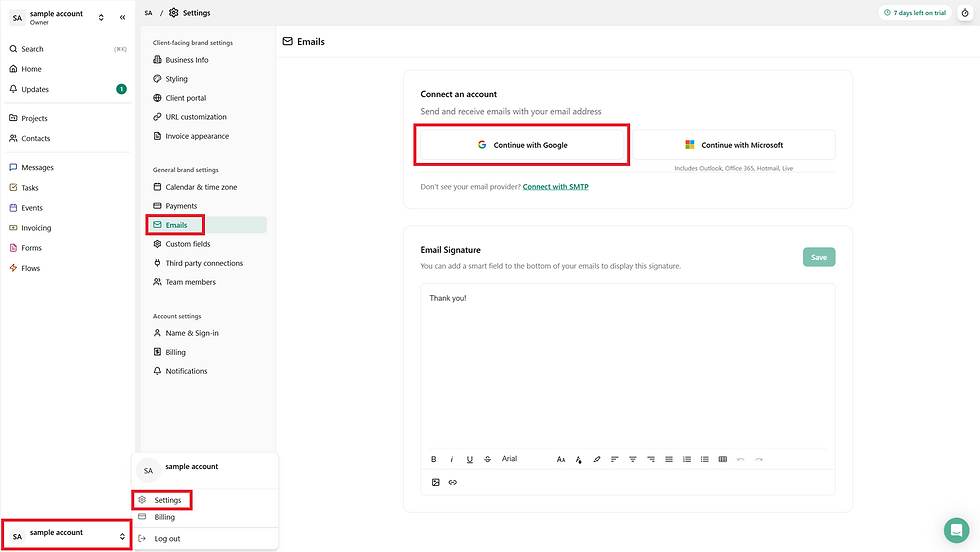
→ Click your Username (bottom left of the screen)
→ Select Settings
→ Click Emails
→ Select your Email Provider (Gmail/Google Workspace or Microsoft/Outlook)
→ Select the Email Address you want to connect

→ Click "Continue"

→ Select what Dubsado can access (you MUST select ALL options for this to function correctly)

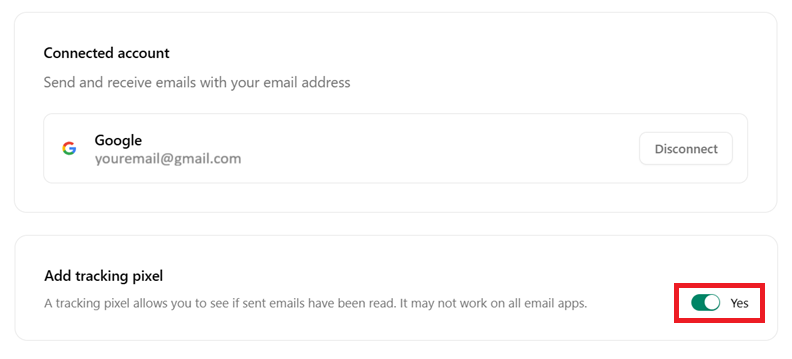
Once connected, you should see the "Connected account" screen shown below.
We recommend enabling tracking features for deeper insight into client engagement:
→ Toggle Yes to activate the Tracking Pixel (lets you see if your lead or client has opened an email sent via Dubsado)
**this is optional, but highly recommended, especially when you want visibility into email interaction without manual follow-up.


Comments