

How to Manually Apply a Tag to a Contact on Systeme.io
- Mar 6
- 1 min read
While most tags in Systeme.io are applied automatically through forms, automations, or purchases, there may be times when you want to manually assign a tag to a contact.
This can be helpful if you’re organizing your list after an event, adding someone to a specific newsletter segment, or updating a contact’s status based on where they are in your customer journey.
Manually applying tags ensures your contacts stay properly segmented so you can continue sending relevant emails and targeted communications to the right groups.
In this tutorial, we’ll walk through how to manually apply a tag to a contact inside Systeme.io.
Step 1: Click the dropdown arrow on the 'CRM' tab of your main dashboard
Step 2: Select "Contacts" from the list ** You can use the left side bar to search through your list. Our preferene is to filter by 'Contains' and begin entering the name or email of your contact
Step 3: Click on your desired contact from the list

Step 4: From your contact's profile, scroll until you see the "Select tags" section. You will see all of your created tags in this space. If you need to create a Tag, click here to see how to do so.
Simply click on the Tag you'd like to apply

You'll know you correctly applied your Tag once you see the colour changed and the checkmark applied:
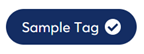
Don't forget to hit 'Save' before exiting.


Comments