

How to Modify Forms & Waivers on Practice Better
- Feb 5, 2023
- 1 min read
Updated: Mar 8
Here are the steps you'll take:
1) Start by selecting "My Practice" from the top menu
2) Select "Forms & Waivers" from the left sidebar list
3) Click "Edit" on any Forms or Waivers that you wish to modify (this can include PDF documents as well!)

Within the Form / Waiver editor, you can make updates to any existing text or input fields, OR add new input fields by clicking and dragging from the right hand sidebar menu and dropping it in place.
**When you hover over each icon, a short description will pop up explaining what each feature / function is
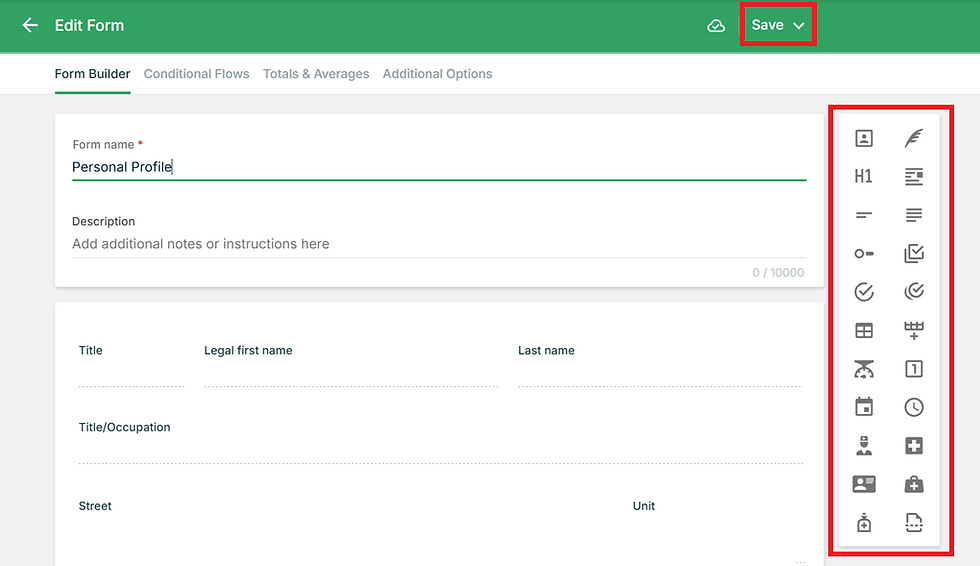
**Don't forget to save any changes!
If you have a 'Form' that you've uploaded as a PDF file, follow the same steps to 'Edit'
From here, you can modify the form name, or the description that will be in the email body when the form is sent to a client.
And if you'd like to swap out your form, you can hit the trash can icon to delete, and upload the updated PDF file from your computer.
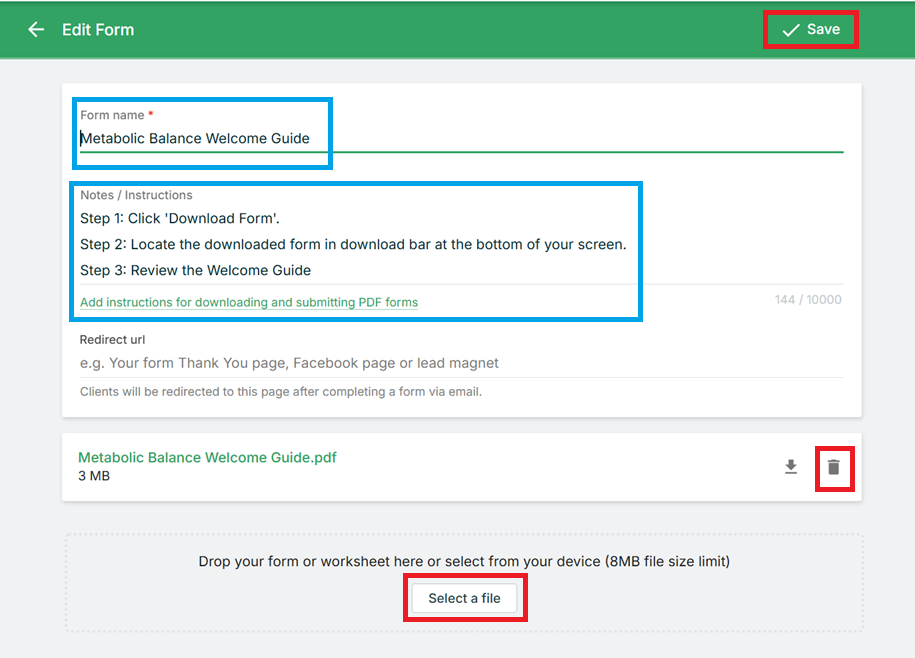
**Don't forget to save any changes!


Comments