

Connecting Your Conferencing Software in Dubsado 3.0
- Jan 6
- 1 min read
Connecting conferencing software is a mandatory step if you want Dubsado to generate unique meeting links for booked video calls. When a lead books an appointment through your Scheduler, Dubsado connects with your conferencing provider to create a new meeting link automatically.
As long as the correct smart fields are included, the meeting link can appear in three places:
The appointment confirmation screen
The confirmation email (using: {{appointment | appointmentConferencingLink}})
The calendar event (using: {{appointment | calendarLink}}, and only if the client clicks the link to add the event to their own calendar) Clients can also add the event to their calendar directly from the confirmation screen using the same smart fields.
To connect conferencing software:
→ Click your Username (bottom left of the screen)
→ Select Settings
→ Navigate to Third Party Connections
→ Click Enable Conferencing

If your Google account is already connected and you use Google Meet (Bloom’s preference), no further steps are needed.

IF you want to connect another provider such as Zoom, continue here:
→ Click Connect a New App (this opens your Cronofy dashboard (sign in if needed).

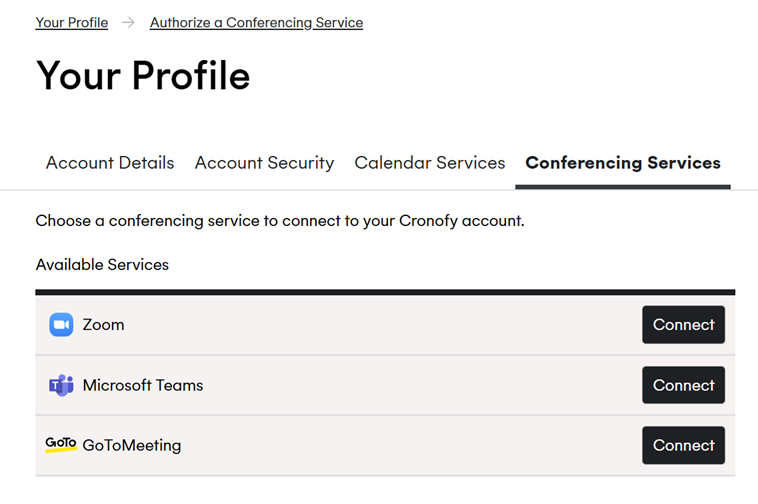
→ Select Conferencing Services
→ Click Add Conferencing Service

→ Select your Provider (Zoom, Microsoft Teams, or GoToMeeting)
→ Log in using your Credentials (ex: Zoom login if selecting Zoom)
→ Check the Consent Checkbox, then click Allow

→ Confirm the Connected Success Screen

→ Return to your Dubsado Tab (refresh if needed)
→ Open the Dropdown Arrow and select your newly connected Provider (ex: Zoom)

Once completed, your Scheduler can now generate unique meeting links for each booked video call using your chosen conferencing software.


Comments