

Creating a New Tax Amount in Dubsado 3.0
Dubsado allows you to create reusable tax line items so your invoices and packages calculate tax accurately and consistently. This is especially helpful if you operate across regions, bill clients with different tax requirements, or need to update your tax rate without rebuilding your pricing. Once a tax item is created, you can apply it to any package or invoice line item, and swap or update rates anytime from a dropdown - keeping your billing clean and compliant.
To create a new tax amount:
→ Navigate to Invoicing on the left sidebar
→ Click into Packages under the Templates area
→ Select the Package you want to update
→ Click into the Item & Description row you want to tax
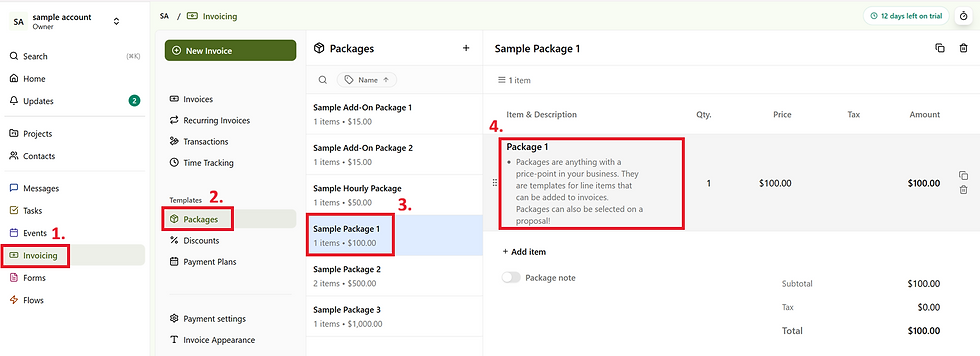
→ Click Select Tax Items under the tax column
→ Click New Tax Item


→ Input the Tax Item Name
→ Set the Tax Percentage
→ Click Create
To apply your new tax rate after creation:
→ Open any Package or Invoice
→ Click to edit the Item & Description row
→ Select your Tax Item from the dropdown
→ Click Save
Tax items apply only to the lines you attach them to, and can be updated or changed at any time without impacting unrelated invoice rows.


.png)


Comments