

How to Create or Edit Package Templates in Dubsado 3.0
Dubsado 3.0 allows you to build Packages as reusable templates, making it easier to present offers without recreating them each time.
Package templates can be used in two key ways: manually applied to an invoice for instant billing updates, or added to a Proposal template so leads can select from available packages at checkout.
When you apply a package to a Proposal template, it becomes connected to your Packages tab. This means any updates you make later inside Invoicing → Packages will automatically carry over to that proposal for all future customers. It’s a smart way to refine pricing, deliverables, or structure while keeping your proposals up to date without manual edits on each one.
With this setup, you can confidently improve your packages over time, knowing those changes will apply globally for upcoming clients while keeping your ability to make real-time adjustments inside individual invoices when needed.
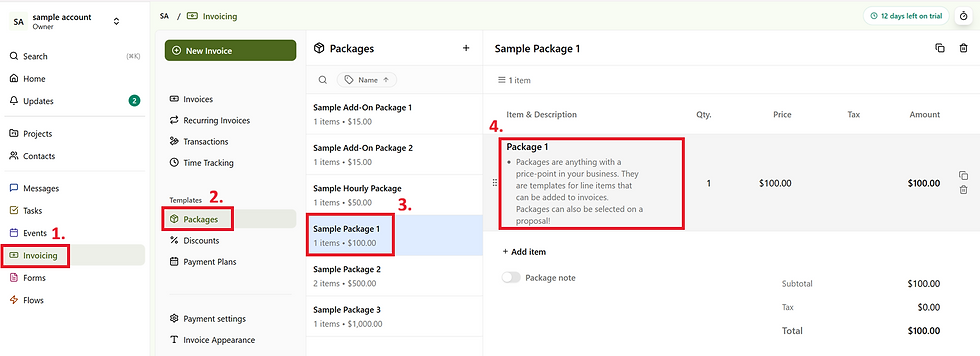
To create a package template, you’ll follow these steps:
Click Invoicing in your left sidebar
Select Packages
Click "+" to add a new package OR click the duplicate icons to duplicate an existing one
Input your mandatory package details
Name
Price
Description
Click "Apply"
Input some optional package settings:
Set / select an Income category if you'd like to track this particular package
Set / Select tax items

If you'd like to make edits to an existing Package, follow steps 1 and 2, and instead of creating a new package, simply select your existing package from the list, and click into the items to make edits or refinements.


.png)


Comments