

Editing Your Wix Website: Content Mode vs. Full Mode Editor
In our previous tutorial, we explored the difference between the Wix Dashboard and the Site Editor. If you haven't reviewed that guide yet, we recommend starting there before continuing with this tutorial.
Once you're comfortable navigating between the Dashboard and Site Editor, the next step is understanding the two editing environments available within Wix Studio: Content Mode and the Full Mode Editor.
Knowing when to use each will help you confidently manage your website while reducing the risk of accidentally impacting its design or functionality.
Accessing the Content Mode Site Editor
From your website Dashboard, locate the Edit Site button.
Clicking Edit Site will open your website in Content Mode by default.

Understanding Content Mode
Content Mode is designed for day-to-day website maintenance and is where most website owners will spend the majority of their time.
It's a simplified editing environment that allows you to make common updates without needing to access the more advanced design tools used during the website build process.
Content Mode is ideal for:
Updating text
Replacing images
Adjusting image settings
Updating button links
Making minor colour adjustments
Managing website content
In fact, during the website feedback stage, we strongly encourage clients to become familiar with Content Mode and make simple content updates themselves whenever possible. Not only is it often faster than sending revision notes back and forth, but it also provides an opportunity to build confidence managing your website while we're still actively working together and available to answer questions.

Common Content Mode Updates
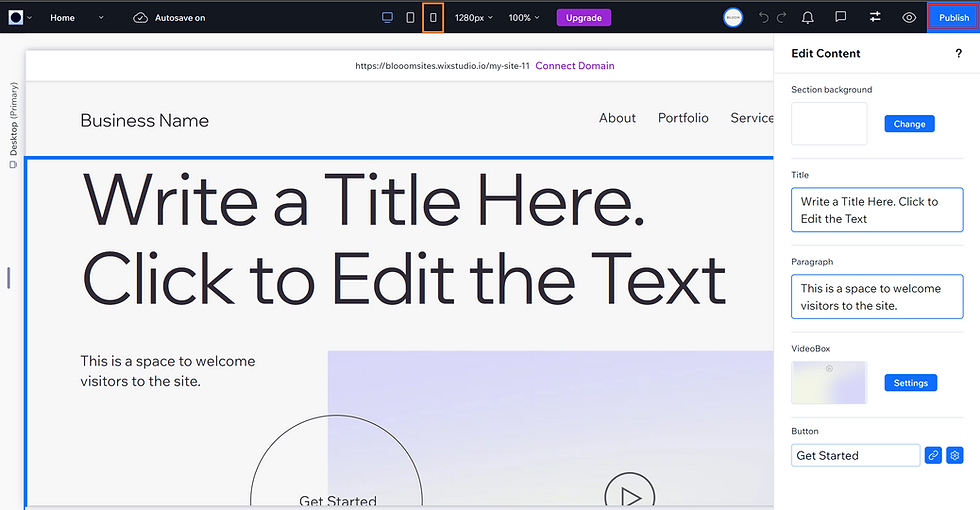
Using the numbered example shown above:
Use the page selector to navigate between pages on your website.
Update section background colours.
Replace images and adjust image settings.
Edit website text.
Update button links and link settings.
Review your changes on tablet and mobile devices before publishing.
Publish your updates to your live website.
A good rule of thumb: if you're updating content that already exists on your website, Content Mode is often the right place to start.
Understanding the Full Mode Editor
While Content Mode is designed for content updates, the Full Mode Editor provides complete access to your website's structure, layout, and design settings.
This is the editing environment we use while building your website and is intended for larger, more advanced changes.
Examples of updates that typically require the Full Mode Editor include:
Creating new pages
Adding or removing sections
Adjusting layouts
Modifying site structure
Advanced design changes
Adding new functionality or apps
Because the Full Mode Editor provides significantly more control, it also introduces more opportunities to accidentally impact the design or functionality of your website.
For many website owners, Content Mode will handle the vast majority of updates they need to make.
If you're unsure whether a change requires the Full Mode Editor, feel free to start in Content Mode first. And remember, you're always welcome to book a support session with the Bloom team if you'd like assistance implementing larger updates or changes.
Accessing the Full Mode Editor
The Full Mode Editor can be accessed from your Dashboard by selecting the appropriate editing option when launching your website.

In the next section, we'll take a closer look at the Full Mode Editor and walk through the areas you're most likely to use when making larger updates to your website.
Common Tasks in the Full Mode Editor
The Full Mode Editor gives you access to your website's structure, design, and advanced functionality. While many website owners will spend most of their time in Content Mode, the Full Mode Editor is available whenever larger changes are needed.
Below are some of the most common tasks completed within the Full Mode Editor:
Feature | What It Allows You To Do |
Pages & Menu Management | Create new pages, update navigation menus, hide pages, or adjust page settings. |
Add New Sections | Add pre-designed sections such as testimonials, FAQs, galleries, contact forms, and more. |
Delete or Rearrange Sections | Remove or hide existing sections or adjust the order of content throughout a page. |
Layout & Design Settings | Modify spacing, alignment, sizing, and overall page layouts. |
Global Colours & Theme | Update your website's colour palette and design theme across multiple pages. |
Fonts & Typography | Adjust heading styles, body text, and website typography settings. |
Forms | Add, edit, or customize forms and form settings on your website pages. |
Blog Management | Configure blog layouts, blog pages, categories, and design settings. |
Mobile & Tablet Optimization | Review and adjust how your website appears on different devices. |
Apps & Integrations | Install and manage Wix apps, third-party tools, and website integrations. (Apps may be installed via the Dashboard, but often need to be styled and configured via the Editor) |
Store, Courses & Memberships | Configure ecommerce, online programs, memberships, and other advanced website functionality. (Again, products, categories, shipping, tax settings, etc can be managed via the Dashboard, but the eCommerce Store itself must be set up on the Editor) |
SEO Settings | Access page-level SEO settings, heading structures, meta descriptions, and indexing options. |
As you become more comfortable with Wix, you may find yourself using some of these features regularly. For others, you may only need them occasionally—or not at all.
We'll continue expanding our Wix Tutorial Library with step-by-step instructions for many of the features listed above.
When accessing your Wix Website, there are two very important places where you'll need to access.
1. Your Dashboard
2 The Site Editor
Your Dashboard:
This is where all of your Settings live.
This is where your Domain, Hosting & Business Email Settings live.
You can manage your Media files, FAQs, and any Contact / Submission Forms from here as well.

The Site Editor:
This is where you can make changes to the visual appearance of your site - from switching out images, text, updating design, linking buttons, etc. Be sure to click the dropdown arrow next to "Edit Site", then select "Content Mode" from the list.

This will take you to a safe editor where you can make any desired changes to the elements of your website without risking any accidents! It will look something like this:
**Don't forget to hit "Publish" to make sure your changes show up on your live site. It's always good practice to check out the mobile version of your site to make sure everything still looks to be in place after the updates have been made.
Should you desire to make any structural changes to your website (ie., deleting a section, or adding a new section), you can only do so via the Full Mode editor.

We've recorded a video tutorial walking you through all the most likely elements that you may need to update in the future. Check out our Wix Back-End Tutorial so you can feel confident and comfortable on the back end of your new website.


.png)


Comments