

How to Integrate Flodesk with ThriveCart to Automate Your Emails and Audience Segmentation
When your checkout and email platform are connected properly, everything in your business starts to feel a lot more seamless.
By integrating ThriveCart with Flodesk, you can automatically segment your audience, trigger targeted email sequences, and create a more personalized experience based on how your customers interact with your offers.
In this tutorial, we’ll walk through both parts of the setup:
First, how to connect your Flodesk account to ThriveCart (this is a one-time setup)
Then, how to apply that integration to your products so your emails and segmentation run automatically
If you’re not already using ThriveCart or Flodesk, you can get started using our signup links.
Step 1: Click on the dropdown next to your profile
Step 2: Select 'Integrations' from the list
Step 3: Click 'Integrate now' under the Flodesk logo, or your email marketing platform of choice

Step 4: Click 'Authorise with Flodesk'


Step 5: You'll be prompted to log in to your Flodesk Account using your username and password
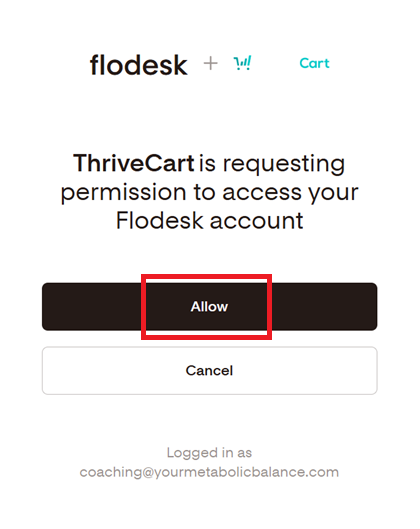
Step 6: Upon successfully logging in, click 'Allow' to enable the connection between your two platforms
You should see a 'Congratulations' screen that looks like this once you've done so successfully.

Once you've reached this stage, you accounts are officially connected and you will not need to repeat any of these steps in the future.
In the next steps, you’ll apply that integration to a specific product inside ThriveCart—telling it exactly what should happen inside Flodesk when someone opts in or makes a purchase.
In the example below, we’re connecting Flodesk to a recurring subscription product in ThriveCart. We’ll walk you through how to segment your audience when someone purchases—and how to automatically update that segment if they cancel their subscription.
If you’re not using a subscription product, you’ll only need to follow the first part of this setup (the purchase segmentation), and can skip the cancellation steps.
This is the step you’ll come back to for each offer or funnel, depending on how you want your audience to be supported and nurtured.
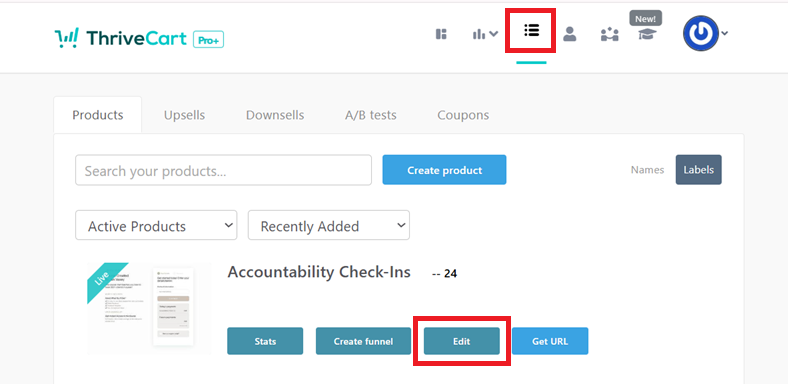
Step 1: Click into the 'Products' tab from your main menu
Step 2: Click 'Edit' under your desired product
Step 3: Navigate over to the 'Automation' tab within your Product Settings
Step 4: Click 'Add rule'


Step 5: Use the dropdown arrows to choose what your trigger will be.
In our example we selected:
> When: 'the main product is purchased'
> use: 'Flodesk'
> 'Add them to' this 'Segment'
> Then we selected our desired segment from the list
> Click 'Save'
This is what you'll see after saving your Automation rule.
If you're selling a regular product, (not a subscription) then you can likely wrap up your automation setup here and simply hit 'Save & get URL' to save your changes.

If you'd like to set another automation rule, click 'Add rule' again, and repeat the same steps, but with our new automation rule in mind.

In our example we selected:
> When: 'a subscription is cancelled'
> use: 'Flodesk'
> 'Remove them from' this 'Segment'
> Then we selected our desired segment from the list
> Click 'Save'
This is what you'll see once you've successfully saved your new rule.
Click 'Save & get URL' to save your changes.

With both pieces in place, your systems are now working together behind the scenes—automatically organizing your audience and delivering the right emails at the right time.
Instead of manually managing your list or trying to keep track of who needs what, your integration between ThriveCart and Flodesk handles it for you—freeing up your time and creating a more consistent client experience.
As you continue building out your products and funnels, this setup becomes a powerful foundation for more advanced automations and intentional customer journeys.
And if you’re looking to take it further, this is often where we start layering in more strategic segmentation and nurture sequences—so your systems aren’t just connected, but actively supporting how you want your business to grow.


.png)


Comments